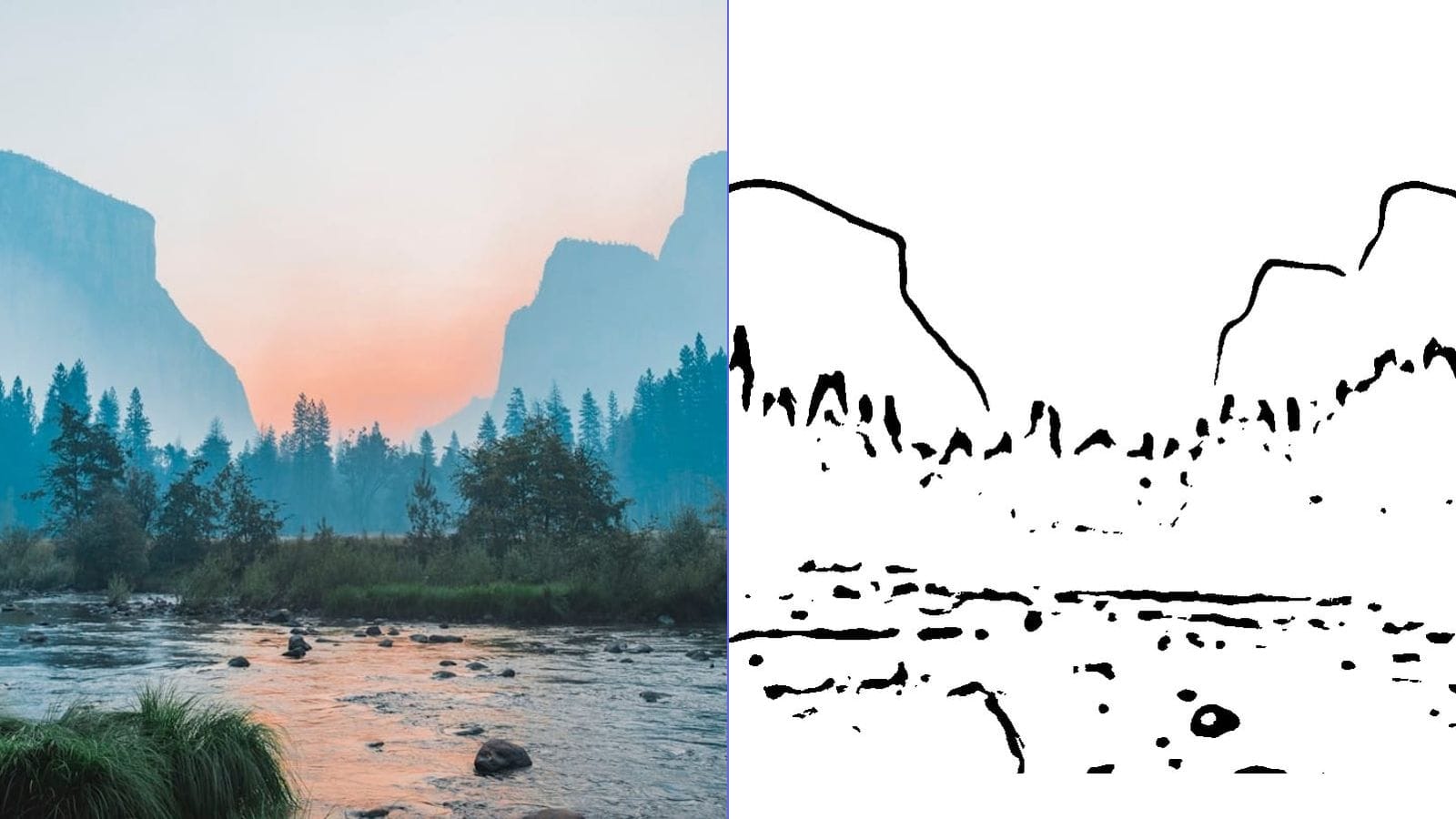
Why You Do Not Need Photoshop for Photo to Line Drawing Conversion
Adobe Photoshop has long been the default answer to "how do I convert a photo to a line drawing?" The process typically involves duplicating layers, desaturating, inverting, changing blend modes to Color Dodge, and applying Gaussian blur — a workflow that takes multiple steps and requires a paid subscription starting at $22.99/month.
But here is the truth: you do not need Photoshop to convert photos to line drawings. Free browser-based tools, free desktop software, and mobile apps can all produce professional-quality line art from photographs. In many cases, specialized line art tools actually produce cleaner results than Photoshop because they are built specifically for this purpose.
This guide covers three free methods for converting any photo to a clean line drawing, ranked by ease of use and output quality.
Method 1: Browser-Based Tools (Fastest and Easiest)
Browser-based line art converters are the fastest way to turn a photo into a line drawing. No software to install, no account to create, and results in seconds.
How It Works with MakeLineArt
Our free line art converter uses advanced edge detection algorithms (Canny edge detection) to extract clean contours from any photograph. The entire process runs in your browser using WebAssembly technology — your photos never leave your device.
Step-by-step process:
- Visit the line art converter
- Drag and drop your photo onto the upload area
- Adjust the intensity slider to control how much detail is captured
- Use the line weight control to thicken or thin the lines
- Download your line drawing as a high-resolution PNG
Processing time: Under 3 seconds for most photos.
Advantages of Browser-Based Tools
- Zero cost: Completely free with no usage limits
- No installation: Works on any device with a modern browser
- Privacy: Your photos are processed locally and never uploaded to any server
- Speed: Results appear in real time as you adjust settings
- Specialized output: Algorithms are specifically tuned for clean line art extraction, unlike general-purpose tools
Best Use Cases
Browser-based tools excel at producing clean, high-contrast line art suitable for:
- Craft projects (laser engraving, scroll saw patterns, stained glass templates)
- Tattoo stencils (use the stencil maker for tattoo-optimized output)
- Coloring pages (try the coloring page generator for child-friendly output)
- Digital art references and tracing templates
- Educational materials and worksheets
Method 2: GIMP (Free Desktop Software)
GIMP (GNU Image Manipulation Program) is a free, open-source image editor that can replicate the Photoshop line drawing workflow. It is available for Windows, Mac, and Linux.
GIMP Line Drawing Process
- Open your photo in GIMP (File > Open)
- Duplicate the layer (Layer > Duplicate Layer)
- Desaturate the top layer (Colors > Desaturate > Desaturate, choose Luminosity)
- Duplicate again and invert the top copy (Colors > Invert)
- Set the blend mode of the inverted layer to "Dodge" in the Layers panel
- Apply Gaussian Blur to the inverted layer (Filters > Blur > Gaussian Blur) — start with a radius of 10-20 pixels
- Flatten and adjust levels (Colors > Levels) to increase contrast
GIMP: Pros and Cons
Pros:
- Completely free and open source
- Full creative control over every parameter
- No internet connection required after installation
- Supports batch processing via Script-Fu
Cons:
- Steeper learning curve (5-10 minutes for first-time users)
- Multi-step process that is easy to get wrong
- Output quality depends heavily on your settings and the source photo
- Software installation required (approximately 200 MB)
When to Choose GIMP
GIMP is a good choice when you need fine-grained control over the line drawing process or when you want to combine the line drawing with other image editing operations (color correction, compositing, text overlay). If you just need a quick, clean line drawing, the browser-based method is faster and produces comparable results.
Method 3: Mobile Apps
Several free mobile apps can convert photos to line drawings directly on your phone. These are convenient for quick conversions on the go.
Popular Free Options
- Camera-based converters: Some apps apply line art filters in real time through your camera
- Photo editors with sketch filters: Many free photo editors include "sketch" or "pencil drawing" filters
Mobile Apps: Pros and Cons
Pros:
- Convenient — always in your pocket
- Some offer real-time camera filters
- Easy sharing to social media
Cons:
- Many "free" apps add watermarks to output
- Lower resolution than desktop or browser tools
- Limited control over line weight and detail
- Privacy concerns — many apps upload your photos to cloud servers for processing
- Ad-heavy experiences
When to Choose Mobile Apps
Mobile apps work well for social media content and casual use. For professional-quality line art, print projects, or privacy-sensitive photos, browser-based tools or GIMP offer better results.
Choosing the Right Photo for Line Drawing Conversion
Regardless of which method you choose, your source photo dramatically affects the output quality. Here is what to look for:
Ideal Photos for Line Art
- Strong edges: Subjects with clear, well-defined outlines produce the cleanest line drawings
- Good contrast: High contrast between subject and background helps the algorithm detect edges accurately
- Simple compositions: A single subject against a clean background works better than a busy scene
- Good lighting: Even, directional lighting creates clear shadows that translate into defined lines
- Sharp focus: In-focus photos with crisp details produce much better line art than blurry shots
Common Mistakes to Avoid
- Low contrast photos: If the subject blends into the background, the line drawing will lack definition
- Overprocessed photos: Heavy HDR or filter effects can introduce artificial edges
- Very busy backgrounds: Trees, crowds, or patterned wallpaper behind your subject create distracting line noise
- Extreme close-ups: Some subjects (skin texture, fabric weave) do not translate well into meaningful outlines
Comparing Output Quality Across Methods
Each method produces slightly different results from the same photo:
Browser-based tools produce the cleanest, highest-contrast output. The algorithms are specifically designed for line art extraction and include noise reduction that eliminates unwanted artifacts. The output is pure black lines on a pure white background — ideal for printing and further processing.
GIMP produces softer, more photographic line drawings with subtle gray gradations. This can look more "artistic" but requires post-processing (levels adjustment) to achieve the crisp black-and-white output needed for printing or crafting.
Mobile apps vary widely in quality. Some produce excellent results; many apply heavy stylization that moves away from true line art into "sketch effect" territory.
Beyond Line Drawings: Related Conversions
Once you discover how useful photo-to-line-drawing conversion is, you might want to explore related tools:
- Stencil Maker: Produces bold, high-contrast stencils optimized for tattoo transfers, spray painting, and craft cutting
- Coloring Page Generator: Creates child-friendly outlines with adjustable detail levels
- One-Line Drawing Generator: Converts photos into continuous single-line art for minimalist wall art and tattoo designs
- Pencil Sketch: Applies a realistic pencil drawing effect with soft shading and natural stroke textures
All of these tools are free, require no sign-up, and process your photos entirely in your browser. Your images never leave your device.
The Bottom Line
You do not need Photoshop — or any paid software — to convert photos to line drawings. For most users, a free browser-based line art converter produces the best results in the least time. For users who want maximum control, GIMP provides a powerful free alternative. And for quick on-the-go conversions, mobile apps fill the gap.
The best tool is the one that matches your specific needs: speed and simplicity (browser tools), full creative control (GIMP), or mobile convenience (apps). Try our free line art converter and see professional-quality line drawings from your photos in seconds — no Photoshop required.