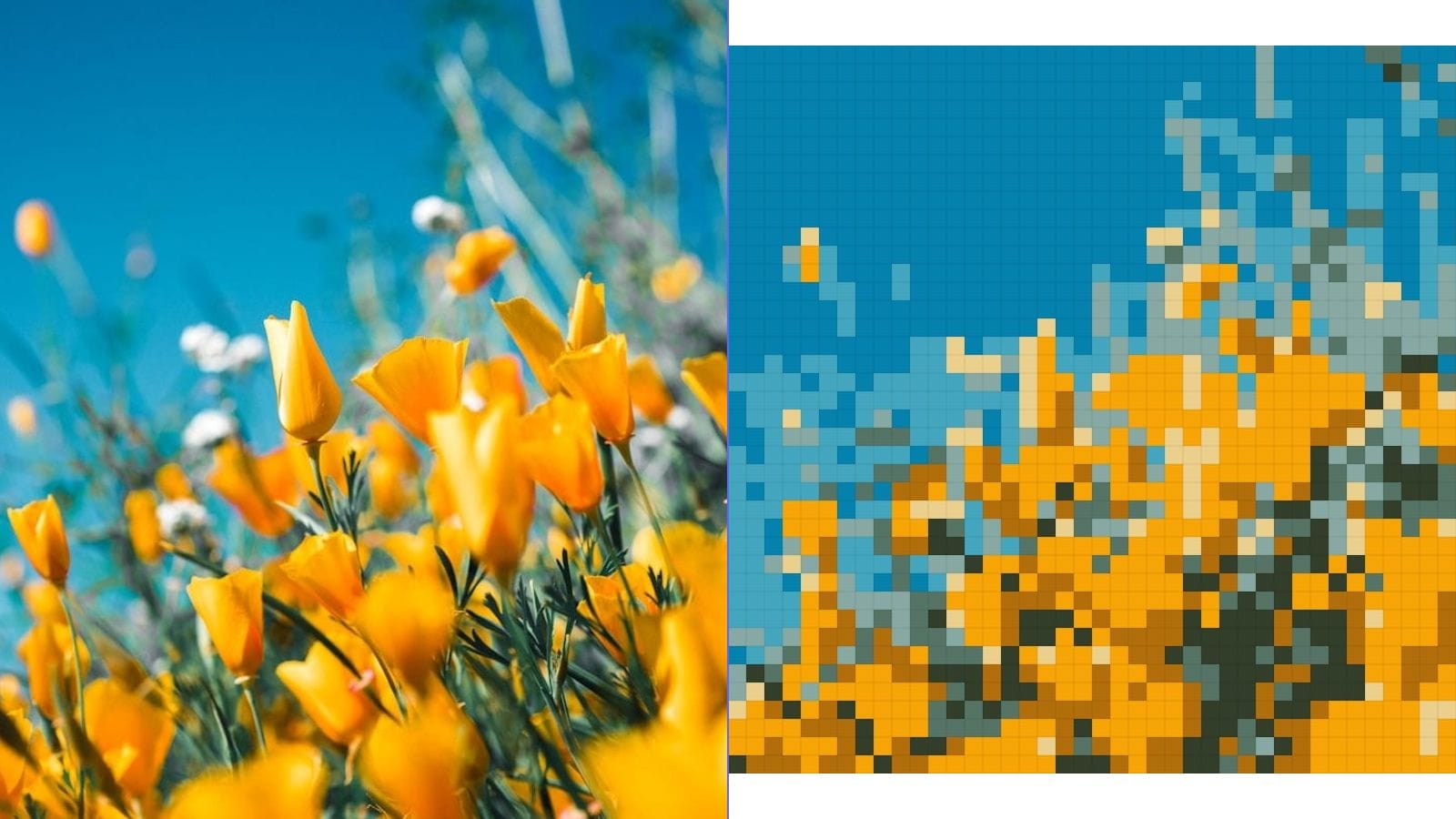
How to Convert Any Photo to a Cross Stitch Pattern
Have you ever looked at a favorite photograph and wished you could turn it into a beautiful cross stitch project? Whether it is a cherished family portrait, a stunning landscape, or an adorable pet photo, the ability to convert photo to cross stitch pattern has never been more accessible. With modern browser-based tools, you can transform any image to cross stitch in minutes — completely free, with no software to install and no account to create.
This comprehensive guide walks you through every step of converting a picture to cross stitch pattern, from choosing the right source image to printing your finished grid. By the end, you will have a professional-quality cross stitch pattern ready for your next needlework project.
Step 1: Choose the Right Photo
The quality of your finished cross stitch pattern depends heavily on the source photograph you select. Not every image translates well into a grid of colored stitches, so choosing wisely at this stage saves hours of frustration later.
What makes a good photo for cross stitch conversion?
- High contrast — Images with clear distinctions between light and dark areas produce the most readable patterns. A portrait with a dark subject against a light background will convert beautifully.
- Simple backgrounds — Busy, cluttered backgrounds create noise in your pattern. Look for photos with clean, uncluttered backgrounds, or consider cropping tightly around your subject.
- Good lighting — Well-lit photos with even lighting produce cleaner color separations. Avoid photos with harsh shadows or mixed lighting that creates confusing color transitions.
- Clear subject — The main subject of your photo should be sharply focused. Blurry images produce muddy, unclear patterns that are difficult to stitch.
- Reasonable complexity — A single flower, a pet portrait, or a simple landscape will convert much better than a crowded group photo or a detailed cityscape.
If your photo does not meet all these criteria, do not worry. You can still get good results by cropping strategically and adjusting the grid size and color count during conversion.
Step 2: Upload Your Photo to the Free Cross Stitch Pattern Maker
Once you have selected your photo, head to the free cross stitch pattern maker. This cross stitch converter runs entirely in your browser, meaning your photos never leave your device. There is no upload to any server, no data collection, and no privacy concerns.
Simply click the upload area or drag and drop your image. The tool accepts all common image formats including JPG, PNG, and WebP. There is no file size limit, though very large images may take a moment to process.
The free cross stitch pattern generator will immediately display a preview of your photo converted into a grid pattern. From here, you can fine-tune several settings to get the perfect result.
Step 3: Adjust Your Grid Resolution
The grid resolution determines how many stitches wide and tall your finished pattern will be. This is one of the most important decisions in the entire process of converting a photo to cross stitch.
Understanding the intensity slider:
The tool provides an intuitive slider that controls the grid resolution. Moving the slider adjusts how many grid squares your image is divided into.
- Low resolution (small grid) — Fewer stitches, faster to complete, but less detail. Ideal for bookmarks, small ornaments, and quick projects. A 40x40 grid produces a simple, iconic result.
- Medium resolution — A good balance between detail and project size. An 80x80 to 120x120 grid captures recognizable features while remaining manageable. This is the sweet spot for most photo to cross stitch conversions.
- High resolution (large grid) — Maximum detail, but requires significant time and commitment. A 200x200 or larger grid can reproduce photographic detail but may take months to complete.
Matching grid size to your project:
Consider the fabric you plan to stitch on. On 14-count Aida fabric, a 100-stitch-wide pattern will measure approximately 7 inches (18 cm) across. On 18-count Aida, that same pattern measures about 5.5 inches (14 cm). Plan your grid size based on the finished dimensions you want.
Step 4: Select Your Color Count
Color count is where the magic happens in turning a photo into a cross stitch pattern. Real photographs contain millions of colors, but practical cross stitch projects use a limited palette of thread colors.
How K-Means color reduction works:
The cross stitch pattern maker uses an algorithm called K-Means clustering to intelligently reduce the number of colors in your image. Rather than simply rounding to the nearest basic color, K-Means analyzes the entire image and finds the optimal set of colors that best represents your photo with the specified number of threads.
Choosing the right color count:
- 2-4 colors — Creates a bold, graphic effect. Perfect for silhouettes, simple logos, or high-contrast designs.
- 6-8 colors — A popular choice for stylized portraits and simple scenes. Enough colors for recognizable features without overwhelming complexity.
- 10-16 colors — The ideal range for most photo-based cross stitch patterns. Provides enough color variety for realistic skin tones, gradients, and subtle shading.
- 20-32 colors — Maximum realism, but requires careful thread organization and more complex stitching. Best for experienced stitchers working on large projects.
DMC thread matching:
When you finalize your pattern, you can match each color in your reduced palette to a specific DMC thread number. DMC is the most widely available embroidery thread brand, and matching your pattern colors to real DMC threads ensures you can easily purchase the materials you need.
Step 5: Download and Print Your Pattern
Once you are satisfied with your preview, download your completed cross stitch pattern. The image to cross stitch tool exports your pattern as a high-resolution PNG file with a clear grid overlay.
Printing tips for the best results:
- Print at actual size — Make sure your printer settings do not scale the pattern. Print at 100% to maintain accurate grid proportions.
- Use color printing — While you can stitch from a black-and-white symbol chart, a color printout makes it much easier to follow the pattern.
- Print on heavier paper — Standard printer paper works, but card stock or photo paper holds up better during extended stitching sessions.
- Consider multiple copies — Print a clean copy for reference and a working copy you can mark up as you stitch.
Tips for Better Cross Stitch Patterns from Photos
Different types of photos benefit from different approaches. Here are specific tips for the most popular categories.
Portrait tips:
Portraits are the most popular subject for photo to cross stitch conversion. For the best results, crop tightly around the face, use 10-16 colors to capture skin tones accurately, and choose a medium grid resolution (80-120 stitches wide). Front-facing portraits with even lighting produce the most recognizable results.
Landscape tips:
Landscapes work beautifully as cross stitch patterns, especially when simplified. Use fewer colors (6-10) for a painterly, impressionistic effect. Landscapes with strong horizontal bands of color — sky, mountains, fields — translate particularly well. Consider a wider aspect ratio to capture the panoramic feel.
Pet photo tips:
Pet photos are the second most popular subject for cross stitch conversion. Choose a photo where your pet is looking directly at the camera with good lighting on their face. For furry animals, a slightly higher color count (12-16) helps capture the texture and variation in their coat. Crop tightly to focus on the face and upper body.
Common Mistakes to Avoid
Even with a powerful cross stitch converter, there are pitfalls that can lead to disappointing results.
Too many colors:
More colors does not always mean a better pattern. Using 30+ colors creates a pattern that is difficult to manage, expensive to supply with thread, and often does not look noticeably better than a well-optimized 12-16 color version. Start with fewer colors and increase only if the preview lacks important detail.
Wrong grid size:
A grid that is too small loses all recognizable features. A grid that is too large creates a project that takes years to complete. For a first project, aim for 60-100 stitches on the longest side. You can always create a larger version once you have experience with the process.
Low-resolution source photos:
Starting with a small, pixelated, or heavily compressed image results in a blurry, unsatisfying pattern. Always use the highest resolution version of your photo available. Screenshots from social media are typically too low quality — use the original file from your camera or phone.
Ignoring the background:
A busy background adds unnecessary complexity and color count to your pattern. Crop your photo to minimize background, or choose a photo with a simple, solid background. Some stitchers prefer to leave the background unstitched entirely, letting the fabric color serve as the backdrop.
Frequently Asked Questions
Is this cross stitch pattern converter free?
Yes, the cross stitch pattern maker is completely free to use. There are no hidden fees, no watermarks, and no limits on how many patterns you can create. The tool runs entirely in your browser, so there is nothing to download or install.
Can I convert any picture to cross stitch?
You can convert virtually any photograph or image into a cross stitch pattern. However, some images produce better results than others. High-contrast photos with clear subjects and simple backgrounds work best. Very dark, very busy, or very low-resolution images may produce patterns that are difficult to follow.
What fabric should I use for my pattern?
The most popular choice is Aida cloth, which comes in various counts. 14-count Aida is the most common and easiest for beginners. Higher counts (16 or 18) produce smaller, more detailed results but require more precise stitching. Match your fabric count to your grid size to achieve the finished dimensions you want.
How long does it take to stitch a photo-based pattern?
Completion time depends on the grid size, color count, and your stitching speed. A small 50x50 pattern with 6 colors might take 20-30 hours. A large 150x150 pattern with 16 colors could take 200+ hours spread over several months. Start with a smaller project to gauge your pace.
Do I need special software?
No. The entire process of converting your picture to cross stitch pattern happens in your web browser. You do not need to download any software, create any accounts, or pay for any subscriptions. Just visit the tool, upload your photo, adjust your settings, and download your pattern.
Start Creating Your Cross Stitch Pattern Today
Converting a photograph into a cross stitch pattern has never been easier. With the free cross stitch pattern generator, you can turn photo into cross stitch pattern in just a few clicks. Whether you are creating a gift for a loved one, preserving a favorite memory in thread, or exploring a new creative hobby, this tool gives you everything you need to get started.
Try it now — upload your favorite photo and see how it looks as a cross stitch pattern. You might be surprised at how beautiful the results can be.